

We are excited to announce an upgrade to the Pay My Bill feature in the ECP Portal. This enhancement allows providers to pay their bills for the following divisions under Versant Health Davis Vision and Superior Vision:
- Davis Vision Excel Advantage
- Davis Vision Negative Balance
- Superior Vision Negative Balance
- Superior Vision Georgia Lab Fees
Step-by-Step Instructions
Step 1: Access the Pay My Bill Option
- Log in to the ECP Portal.
- Navigate to Pay My Bill.
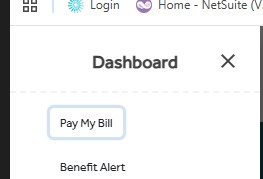
Step 2: Select the Correct Category
- On the payment screen, choose the correct Category (Division) from the dropdown menu.

Step 3: Choose Your Provider Number
- Select your Provider Number from the dropdown list.
- Important:
- If your provider number is not listed, do NOT select a random number.
- Doing so will result in your payment being returned and may lead to network suspension due to nonpayment.

Step 4: If Your Office Is Not Listed
- Click the appropriate link below to enter your provider number manually:
- Davis Vision Negative Balance: Davis Vision Negative Balance Card Payment
- Davis Vision Excel or Tower: Davis Vision Excel/Tower Card payment
- Superior Vision Negative Balance: Superior Vision Negative Balance Card payment
- Superior Vision Georgia Lab Fees: Superior Vision Georgia Lab Fees
- Note: The provider number must be typed in. If not, the payment will be returned.

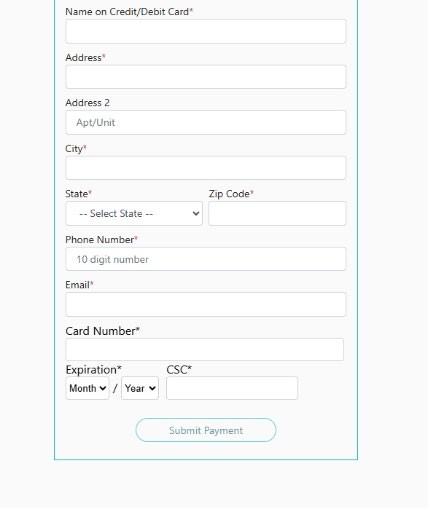
Step 5: Enter Payment Details
- Fill in all required fields:
- Credit Card Information
- Billing Address
Key Reminders
- Always select the correct division and provider number.
- Incorrect selections or missing provider numbers will cause payment issues and potential suspension.
- Use the provided links for manual entry when necessary.